New Student Technology Setup 2026
Welcome to the FHARGA technology setup guide for new students. Completing these steps will give you access to the university systems, learning platforms, and communication tools you need to start the academic year smoothly.
Before you begin, complete your academic registration on SunStudent.
Please complete all required steps below. Steps marked with * are compulsory.
Also make time to review the EMS welcoming programme for 2026.
Step 1 - Check Whether You Already Have a Working Password *
If you already know your student number and you can sign in successfully, continue to Step 3.
If you have forgotten your password, never received it, or cannot sign in, continue to Step 2.
Password requirements
The documented minimum password length is 14 characters, and passwords must be changed periodically.
Step 2 - Reset or Create Your Password
- Open Password Management.
- Select Forgot Password?
- Complete the verification step and continue.
- Enter your student number.
- Choose the most accessible recovery option, such as SMS or email.
- Follow the prompts to create your new password.
- Continue to Step 4.
If you need to update your personal details first, review Step 6.
Step 3 - Change Your Password
If you are able to sign in, change your password once so that it is synchronized across university systems.
- Open Password Management.
- Select Change current password?
- Sign in with your current password.
- Review the password requirements.
- Enter your current password.
- Create and submit a new password.
- Continue to Step 4.
If you still need to set up campus Wi-Fi, use the Eduroam section on the FAQ page.
Step 4 - Set Up Multifactor Authentication (MFA) *
MFA adds a second verification step to your university account and is required for Microsoft services and other protected systems.
- Go to portal.office.com and sign in with your full university email address, for example
12345678@sun.ac.za. - When prompted for more information, select Next.
- Choose Mobile App as your preferred verification method.
- Install Microsoft Authenticator from Google Play or the Apple App Store.
- Open the app and scan the QR code shown on your computer.
- Approve the test notification.
- Add your mobile number as a backup method if prompted.
- Select Done to complete setup.
If you are not prompted automatically, use the direct MFA setup page.
More help:
If you do not have a smartphone, choose SMS and make sure your mobile number is correct in both SunStudent and Microsoft security info.
If you already have your student card, continue to Step 5. Otherwise continue to Step 6.
Step 5 - Load Printing Money (Optional)
Printing on campus
You can only release print jobs if you have a valid student card.
Once you have collected your student card, sign in to SunStudent and load printing funds:
- Select
Requestsfrom the left-hand menu. - Open
All Requests.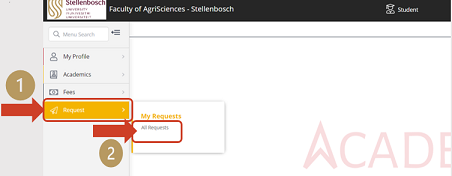
- Select
Raise Request. - Choose
Printing Quota.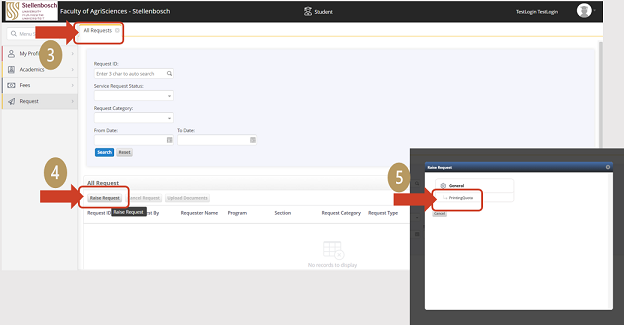
- Set
Request CategorytoPrinting Services. - Enter the amount you want to load.
- Select
Upload & Submit. - In the next screen, select
Save.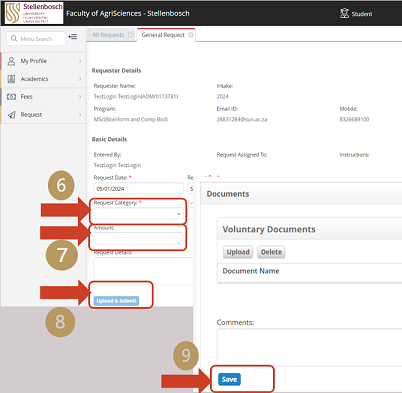
- Confirm that the service request appears on your student account.
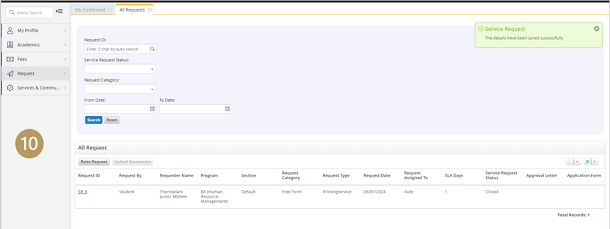
For printing instructions and tariffs, see the FAQ printing section and the 2026 printing tariffs.
Step 6 - Sign In to My.SUN and Check Your Details *
Note
This step is especially important for first-year students.
Sign in to My.SUN and check the following:
- Class timetable
- Open
Undergraduate - Open
Studies - Select
Class Timetable (First Years)
- Timetables are usually available from the Thursday before classes begin.
- Student email
- Open
Undergraduate - Open
General - Select
Web E-mail, thenOutlook Cloud Email (Office 365) - You can also go directly to Outlook on the web
- Personal information
- Open
Undergraduate - Open
Administration - Select
Personal Information - Use
Change Informationto update your phone number, address, or email address
Keep your mobile number up to date
Your correct mobile number is important for password recovery and security verification.
Free Microsoft Office
Students can install Microsoft 365 by signing in to portal.office.com and selecting the install option.
Step 7 - Complete the Technology Survey *
Complete the FHARGA technology survey using your full university email address and password.
Step 8 - Sign In to SUNLearn or EMSLearn *
SUNLearn and EMSLearn are the learning platforms where lecturers share module material, announcements, and online activities.
- Open EMSLearn or access SUNLearn through My.SUN.
- Select Log in.
- Enter your student number and university password.
- Accept the policy agreement if prompted.
- Open your registered modules.
- When finished, log out from the menu next to your name.
Step 9 - Install Microsoft Teams and Office *
- Sign in to portal.office.com.
- Use your full university email address and password.
- Select Install Office.
- Install the applications you need for your computer and mobile devices.
Step 10 - Download Useful Apps
- SU campus map: Google Play or Apple App Store
- Microsoft Authenticator: Google Play or Apple App Store
- Web campus map: campusmap.sun.ac.za
Step 11 - Read the FHARGA Code of Conduct *
Finish by reading the FHARGA general information and code of conduct.
Created: 2026-03-16